Recover an iOS Restrictions Passcode Using PinFinder
I’m doing this because forgetting the iOS Restrictions or Screen Time passcode is way more common than people admit. Been there, felt silly, panicked a bit 😅. If you own the device and just need access back to your own settings, PinFinder is one of the few tools that actually works for older iOS versions. I tested this myself, and I’m walking you through it properly, step by step, no mystery jumps.
Before we start, quick reality check. This only works on specific iOS versions, and only if you have access to the device and its backup. No magic, no Hollywood hacking vibes.
Prerequisites
Make sure you have all of this sorted before touching anything.
- An iPhone, iPad, or iPod Touch that you own
- iOS version between iOS 8 and iOS 12.4.4
- A computer running Windows, macOS, or Linux
- iTunes installed on the computer
- A USB cable to connect your device
- PinFinder downloaded for your operating system
Note: This does not work on iOS 13 or later. Apple changed how the passcode is stored, so PinFinder cannot read it anymore.
Understand what Restrictions actually are
Restrictions, also called Parental Controls, lock certain features on iOS.
Examples:
- Blocking YouTube
- Hiding explicit music
- Locking app installs or deletions
They are protected by a separate four digit PIN. If you forget it, you cannot change any restriction settings without resetting it.
Why this matters: PinFinder pulls this PIN from your local iTunes backup. No jailbreak needed, which is huge.
Download PinFinder
Head to the official PinFinder releases page on GitHub and download the latest version for your OS.
TIPAlways download from the official GitHub releases. Random mirrors are dodgy, full stop.
Once downloaded:
- Windows: You will get a zip file
- macOS: You will get a
pinfinder.tar.gz - Linux: You will get a compressed binary
Do not run it yet.
Take a fresh iTunes backup (important)
This step is non negotiable. Seriously.
- Connect your iPhone to your computer using a USB cable
- Open iTunes
- Select your device
- Go to Summary
- Click Back Up Now
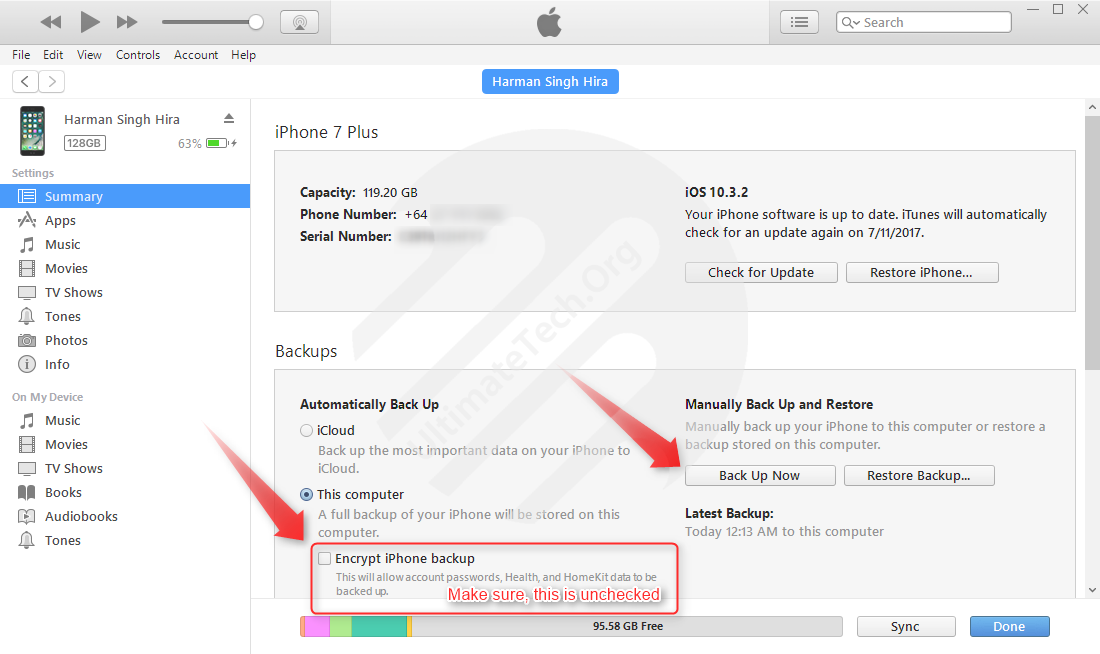
Why fresh matters:
- Old backups might contain an older Restrictions passcode
- If something goes wrong, you do not risk corrupting your only backup
WARNINGDo not encrypt the backup. Encrypted backups can block PinFinder from reading the data.
Run PinFinder on Windows
- Extract the PinFinder zip file
- You will see a single executable file
- Double click it to run
A Command Prompt window will open and do its thing. After a few seconds, your Restrictions passcode should be displayed clearly.
WARNINGSome antivirus tools flag PinFinder as suspicious. This is a false positive because it reads and decrypts backup keys. Temporarily disable antivirus if needed, but only if you trust the source.
Run PinFinder on macOS
- Extract
pinfinder.tar.gz - Right click on PinFinder
- Choose Open With
- Select Terminal
Terminal will launch and run PinFinder automatically. Wait a moment, and your Restrictions passcode will be printed in the Terminal window.
NOTEIf macOS blocks it, go to System Settings, Privacy and Security, and allow the app to run.
Run PinFinder on Linux
- Extract the downloaded archive
- Open a terminal in the extracted folder
- Run the binary
For example:
$ ./pinfinder
PIN Finder 1.3.0
http://github.com/gwatts/pinfinder

IOS DEVICE                     BACKUP TIME                 RESTRICTIONS PASSCODE
Harman Singh Hira              Jul 9, 2017 02:54 PM NZST   no passcode stored
Harman Singh Hira - 8/06/2017  Jun 8, 2017 04:19 PM NZST   2121
Harman Singh Hira - 8/06/2017  Jun 8, 2017 04:19 PM NZST   2121
Give it a few seconds. Once done, the Restrictions passcode will be shown directly in the terminal output.
Use the recovered passcode on your device
Now grab your iPhone.
- Go to Settings
- Open Screen Time or Restrictions
- Enter the recovered four digit PIN
- Change or disable Restrictions as needed
That’s it. No restore, no data loss, no stress.
Important warnings before you celebrate
- This only works on iOS 8 to iOS 12.4.4
- It does not work on iOS 13 or later
- This should only be used on devices you own or manage
- If you restore from an old backup later, the old passcode may come back
Special Thanks
Big shoutout to Gareth Watts, the dev behind PinFinder. Absolute legend for building this tool and even tweeting me about it personally. Love when creators actually show up for their work 🙌
Final thoughts
PinFinder is one of those rare tools that just quietly works. No jailbreak, no sketchy steps, no drama. Big thanks to Gareth Watts for building it and even reaching out personally. Absolute legend 👏.
If this saved you from wiping your phone or losing your mind, you’re welcome. Go change that passcode to something you will actually remember next time, yeah 😄.